
LORA Self-Service Payment Plan Instructions
Creating a Payment Plan
Ìý
STEP ONE
Once you log into your LORA Self-Service account, click theÌý"Student Finance"Ìýbutton to get to your student account homepage.
On the bottom right side click the link titled "Make a Payment". This will take you to your eCommerce account site.
From here,Ìýclick the button that saysÌý"Payment Plans"ÌýorÌý"Enroll in Payment Plan."ÌýBoth options will take you to the same page.

Ìý
STEP TWO
Next, you will select the term that you would like to make the payment plan for, such as "2022 Fall."Ìý

STEP THREEÌý
Next, you will hit the greenÌý"Select"Ìýbutton to select the payment plan type that you want to enroll in.

STEP FOUR
From there, you will see details for the payment plan selected as well as an input area for the amount you would like to make the payment plan for.

Ìý
STEP FIVE
Once you input the amount you want for your payment plan, press enter and then clickÌý"Update Schedule."

Ìý
STEP SIX
Your monthly payments will automatically be calculated based on the amount inputted. Once you look over the payment schedule and are ready to move on, clickÌý"Continue."

Ìý
STEP SEVEN
Next, you will need to select yourÌýpayment methodÌýand fill out your information. (You will only be charged the entry fee at this time for setting up the plan.)

STEP EIGHT
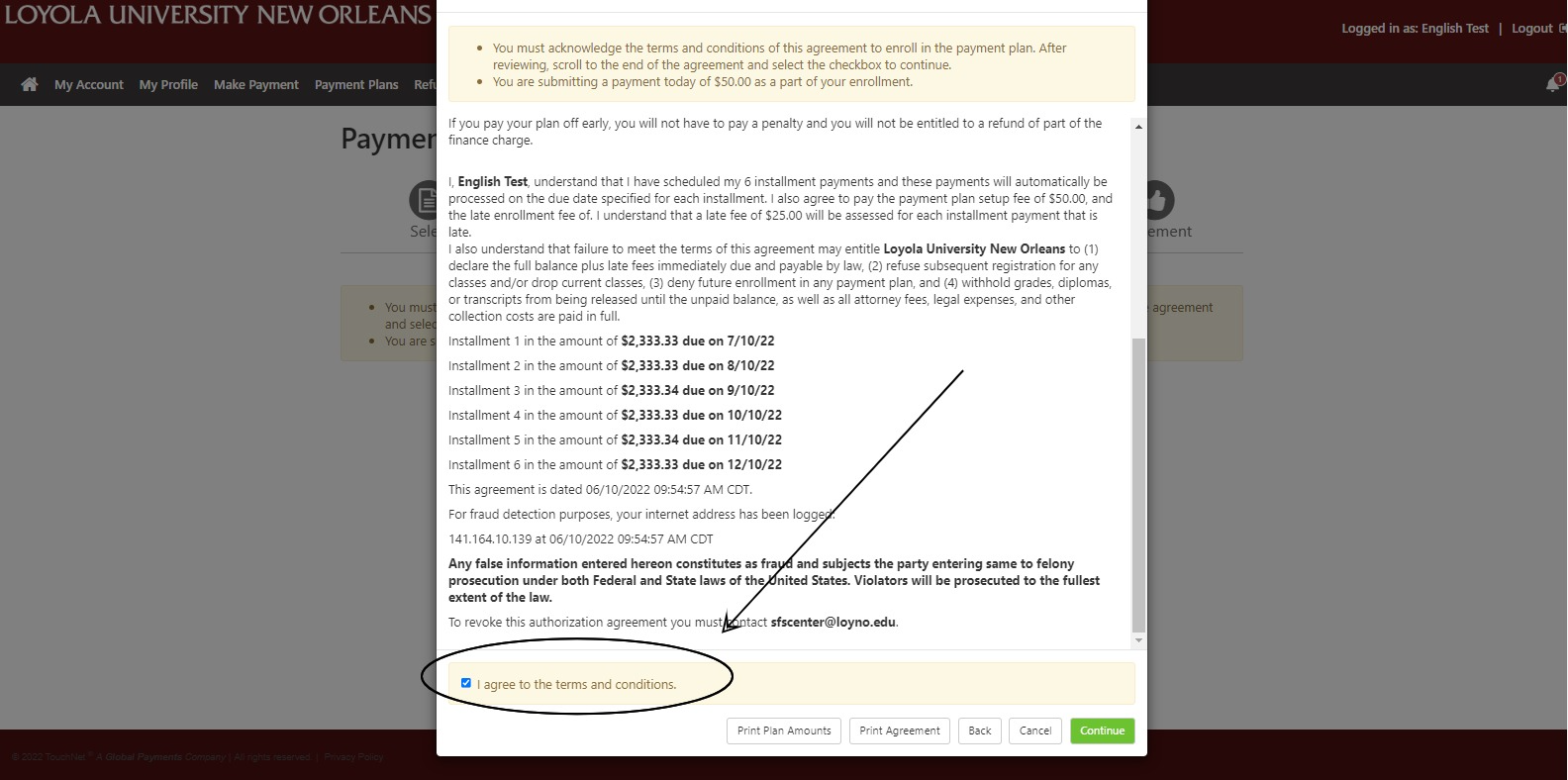
Once you have finished inputting your payment method information, you will clickÌý"Continue"Ìýand then you will be taken to twoÌýAgreement PagesÌýwhere you will need to check the box to agree to the terms of the payment plan. Hit theÌý"Continue"Ìýbutton once you agree to the terms and conditions.

STEP NINE
The last page will be brought to is the Payment Receipt page. This is a receipt for the $50 entry fee.

LAST STEP
Your payment plan is now set up and you will see it displayed on the E-Commerce homepage underÌý"Scheduled Payments."

HAVE QUESTIONS?
Please reach out to Student Financial Services atÌýsfscenter@loyno.edu.Ìý